Brand Management
Brands represent the main category of organization. A brand can have multiple defined locations.
Access the Operations → Brand menu and choose Add Brand.
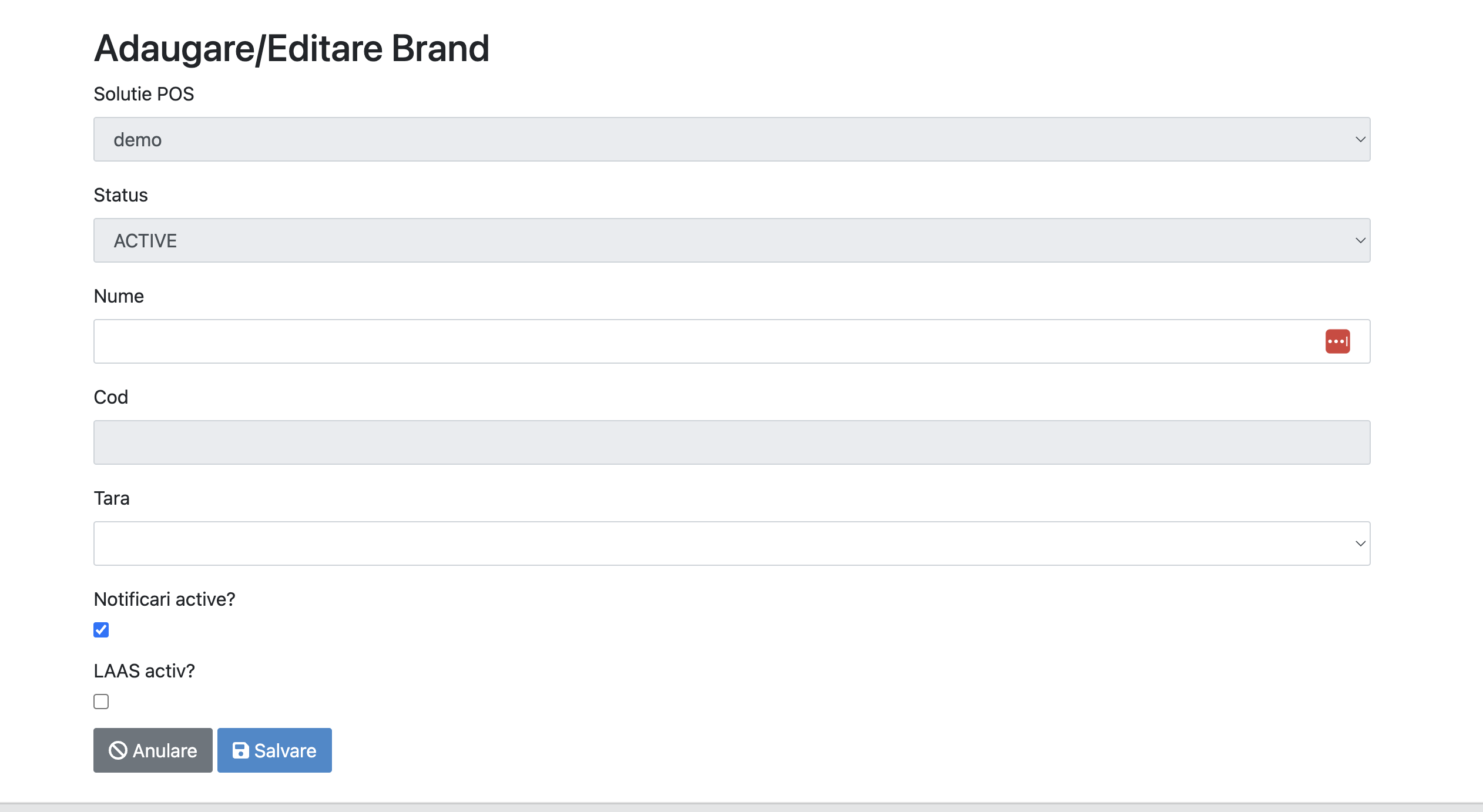
Brand Options
| Option | Description |
|---|---|
| Active Notifications? | If unchecked, POS won't receive notifications for brand stores |
Location Management
After adding a brand, select View from the brands grid.
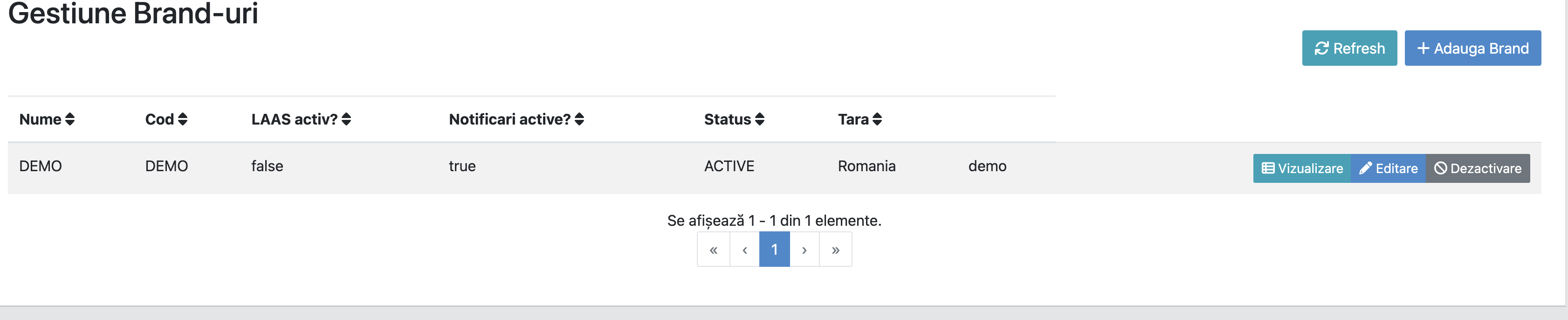
The location management screen opens:

Access Create a new location:
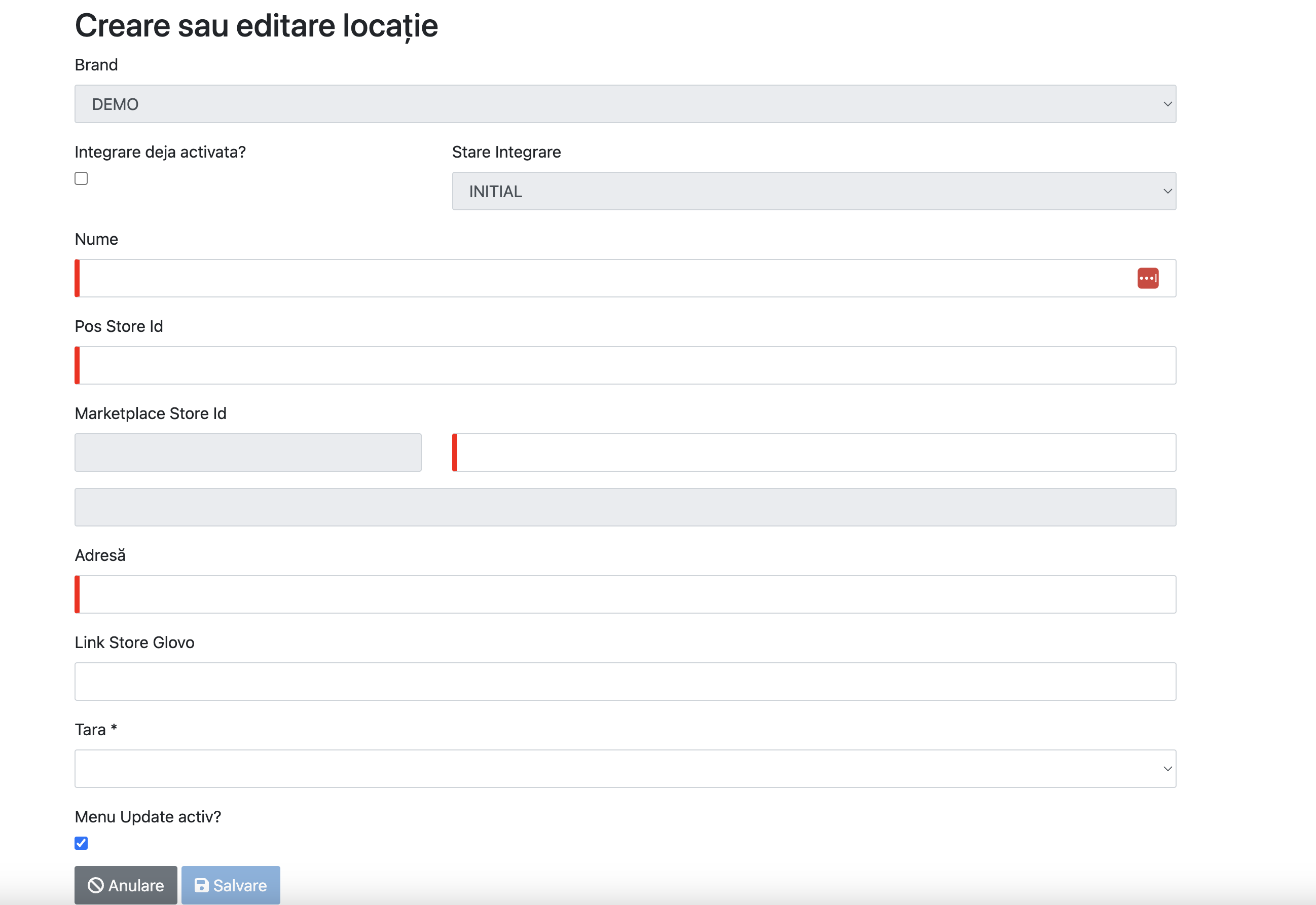
Location Fields
| Field | Description |
|---|---|
| Name | Restaurant name |
| POS Store ID | Location ID from POS (without POS solution indicator — auto-completed) |
| Address | Restaurant address |
| Active Menu Update? | Enable/disable notifications for location |
NOTE
POS Store ID can be any alphanumeric string, as long as it is unique in the system.
ATTENTION
Integration Already Activated? — Attribute for historical data entry. Checking marks the location as already activated in Glovo, and the Glovo team will not be notified for activation.
After saving, the Glovo team will be notified for activation. Once activated, the POS solution receives the notification and orders can reach the POS.