POS API Key Management
IMPORTANT
The API key value is sent in the Authorization header to the defined endpoints.
Defining an API key is necessary before defining endpoints. Access Profile → POS API Keys.
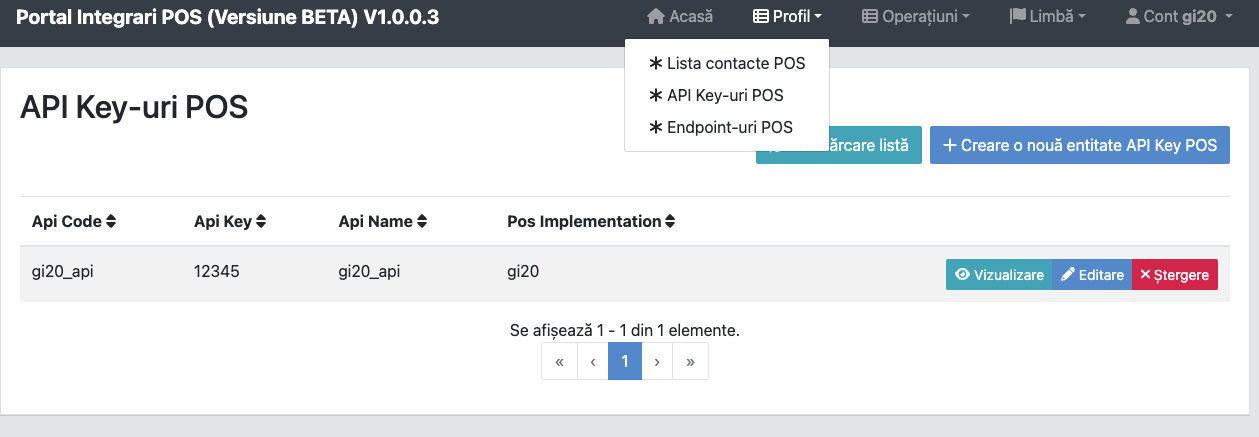
Choose Create POS API Key:
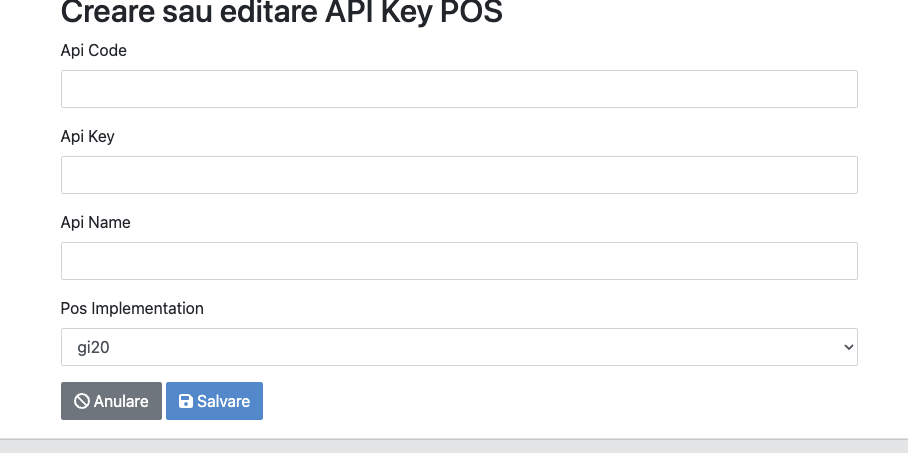
| Field | Description |
|---|---|
| API Code | Any code |
| API Key | Value sent in the Authorization header |
| API Name | Descriptive name for the key |
| POS Implementation | Auto-completed |
POS Endpoint Management
Access Profile → POS Endpoints:
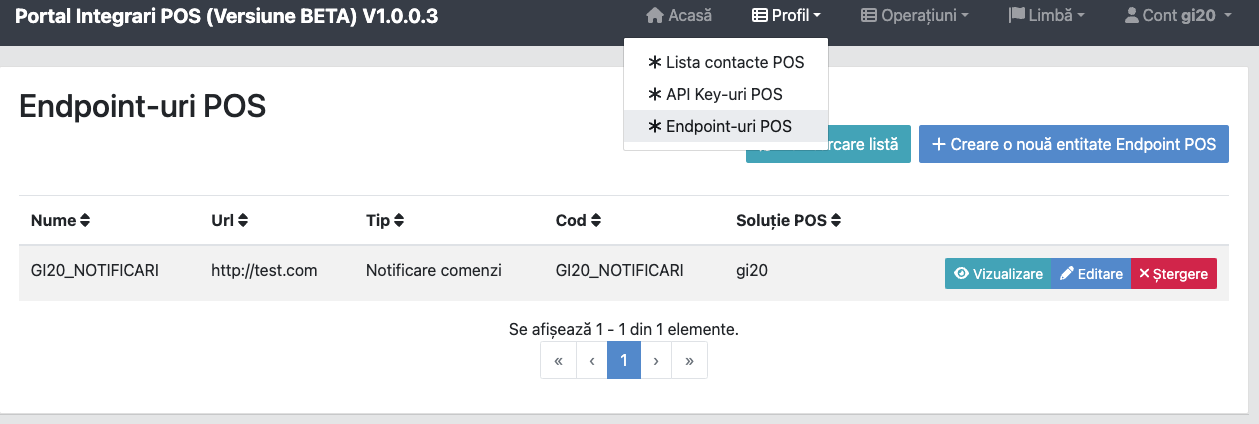
Choose Create POS Endpoint:
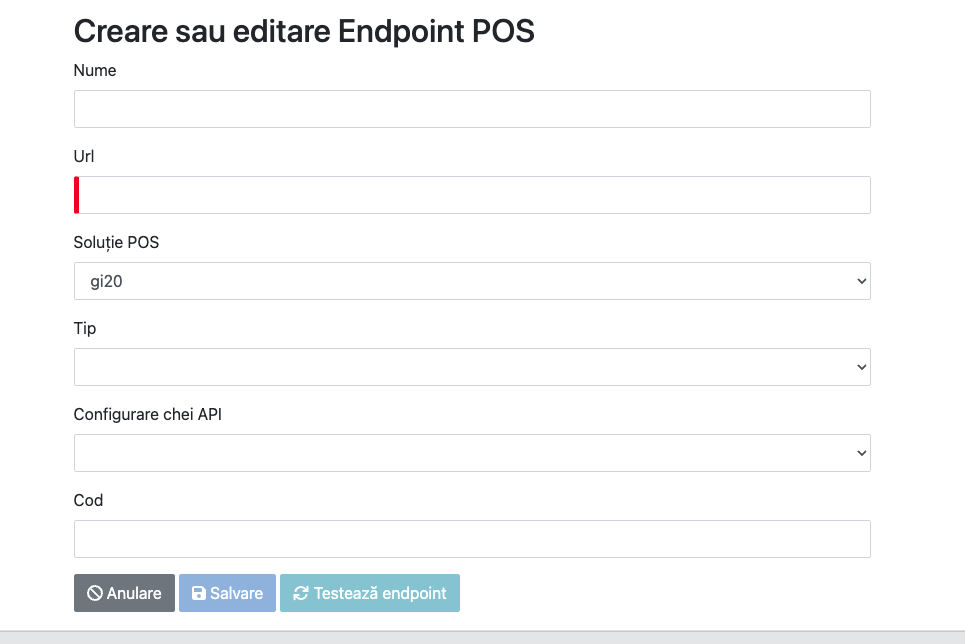
| Field | Description |
|---|---|
| Name | Endpoint name |
| URL | Endpoint URL |
| POS Implementation | Auto-completed |
| API Key Configuration | Select from defined API keys |
| Code | Endpoint code |
Endpoint Types
| Type | Description |
|---|---|
| Order notifications | Receives notifications for new orders |
| Menu update result notifications | Receives menu update operation results |
| Canceled order notifications | Receives orders canceled by Glovo users |
TEST
Before saving, press Test endpoint to verify the response.
NOTIFICATION DISTRIBUTION
All notifications from the POS solution account go to all defined endpoints. If you need to distribute messages to multiple clients, this is done at the POS solution level (one endpoint exposed to Glovo, internal distribution at that endpoint level).